Turn a photo of your dog into a cross stitch pattern
You have a dog photo and you want to turn it into something you can stitch. A pet portrait is a good gift, or something for your own wall.
This post walks through the whole thing in FellowStitch: adding the photo, generating the chart, and clearing the background without losing the dog's white fur.
What you'll make
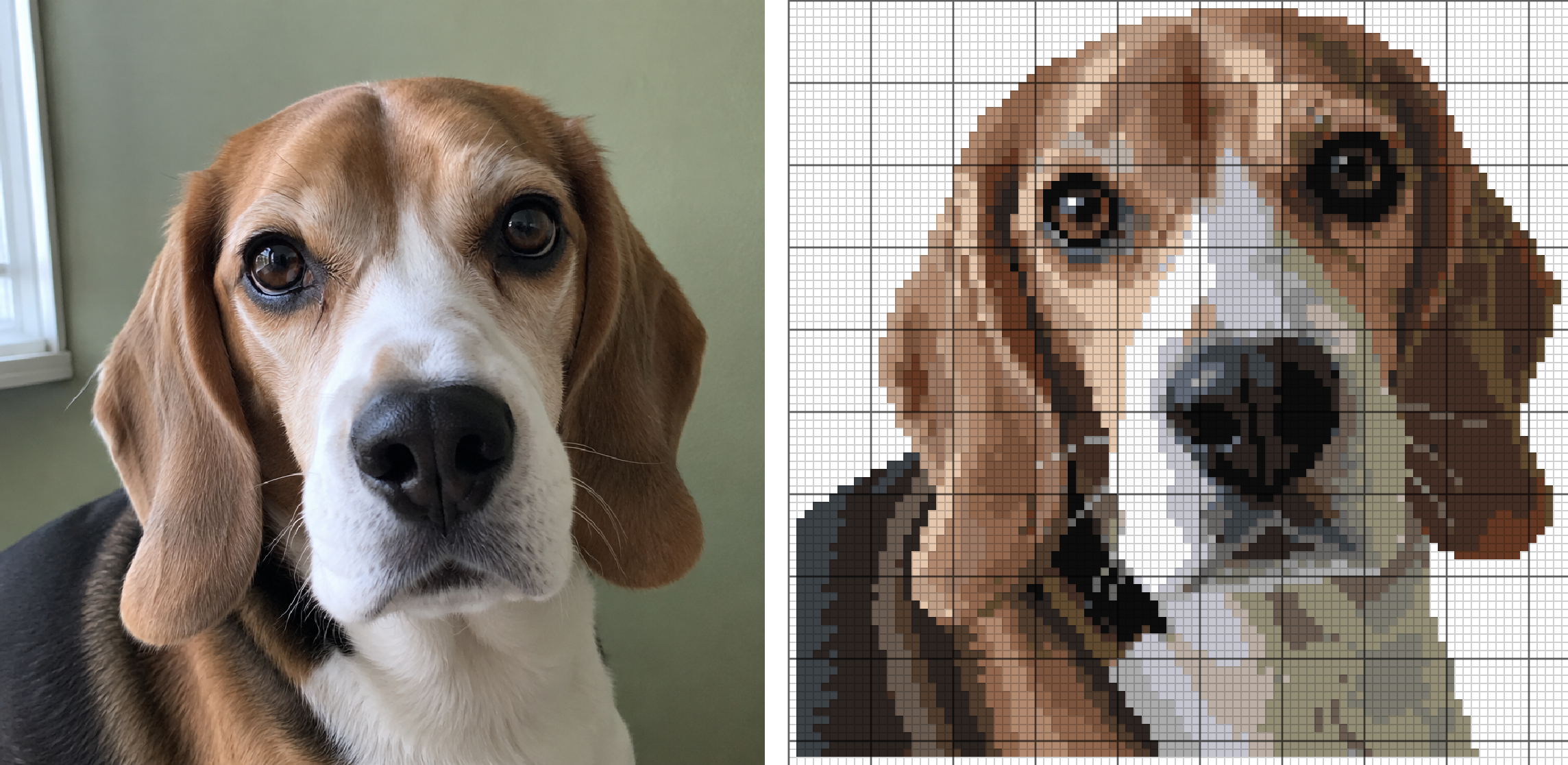
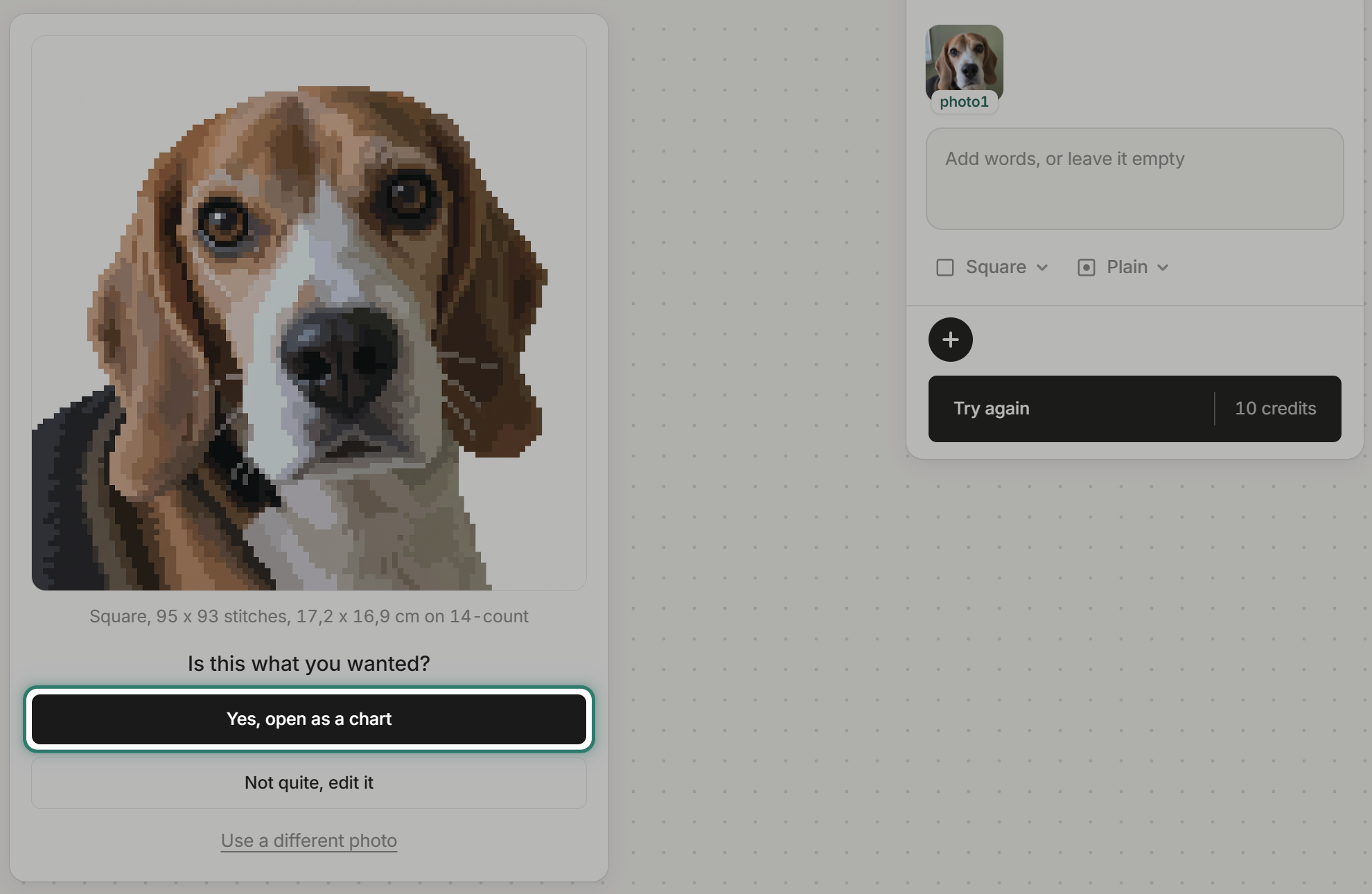
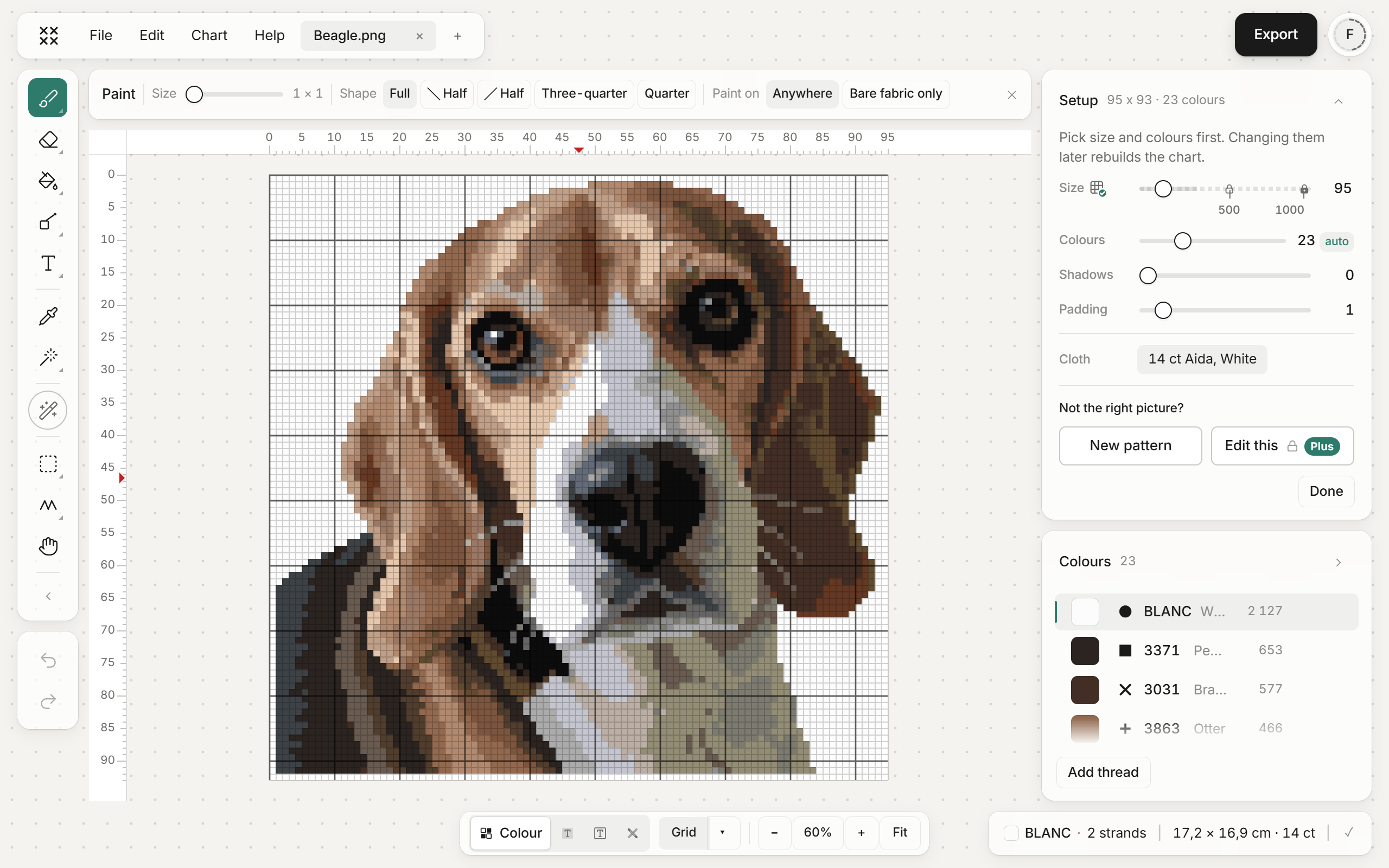
95 x 93 stitches in 23 DMC threads on 14-count white Aida, 17,2 x 16,9 cm. The background is gone, and the white blaze and both eye highlights stay.
Step by step
Step 1: Add the dog photo
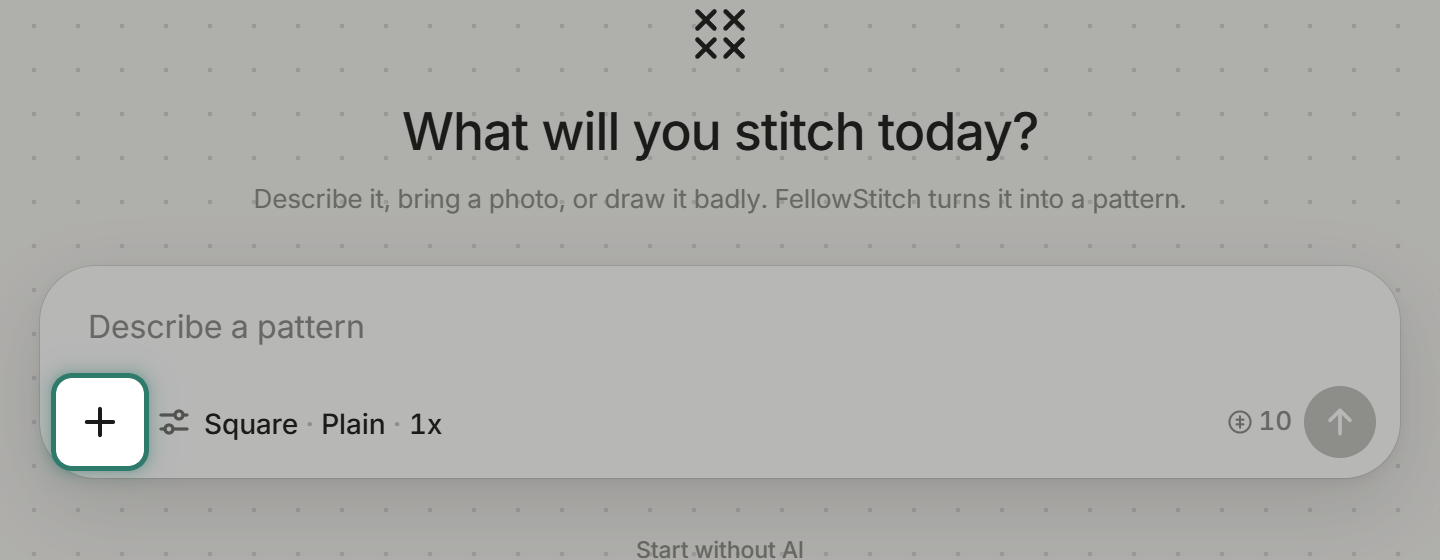
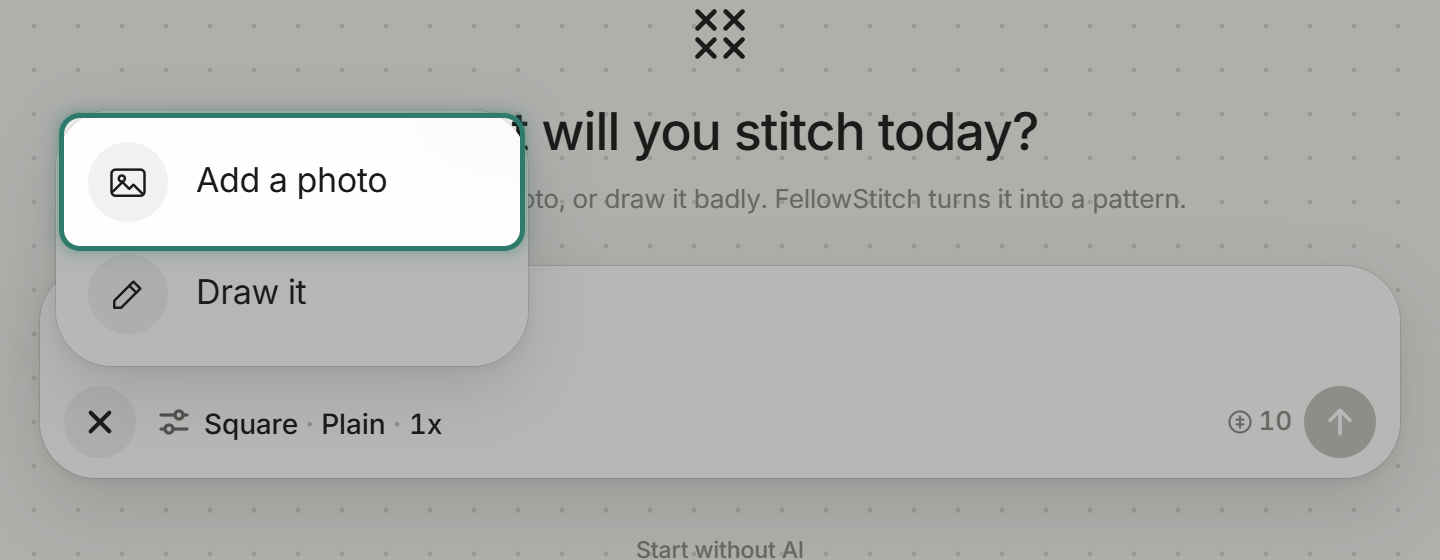
Press "+" on the start screen, then "Add a photo".
The crop opens. Press "Whole photo" to use the full frame.
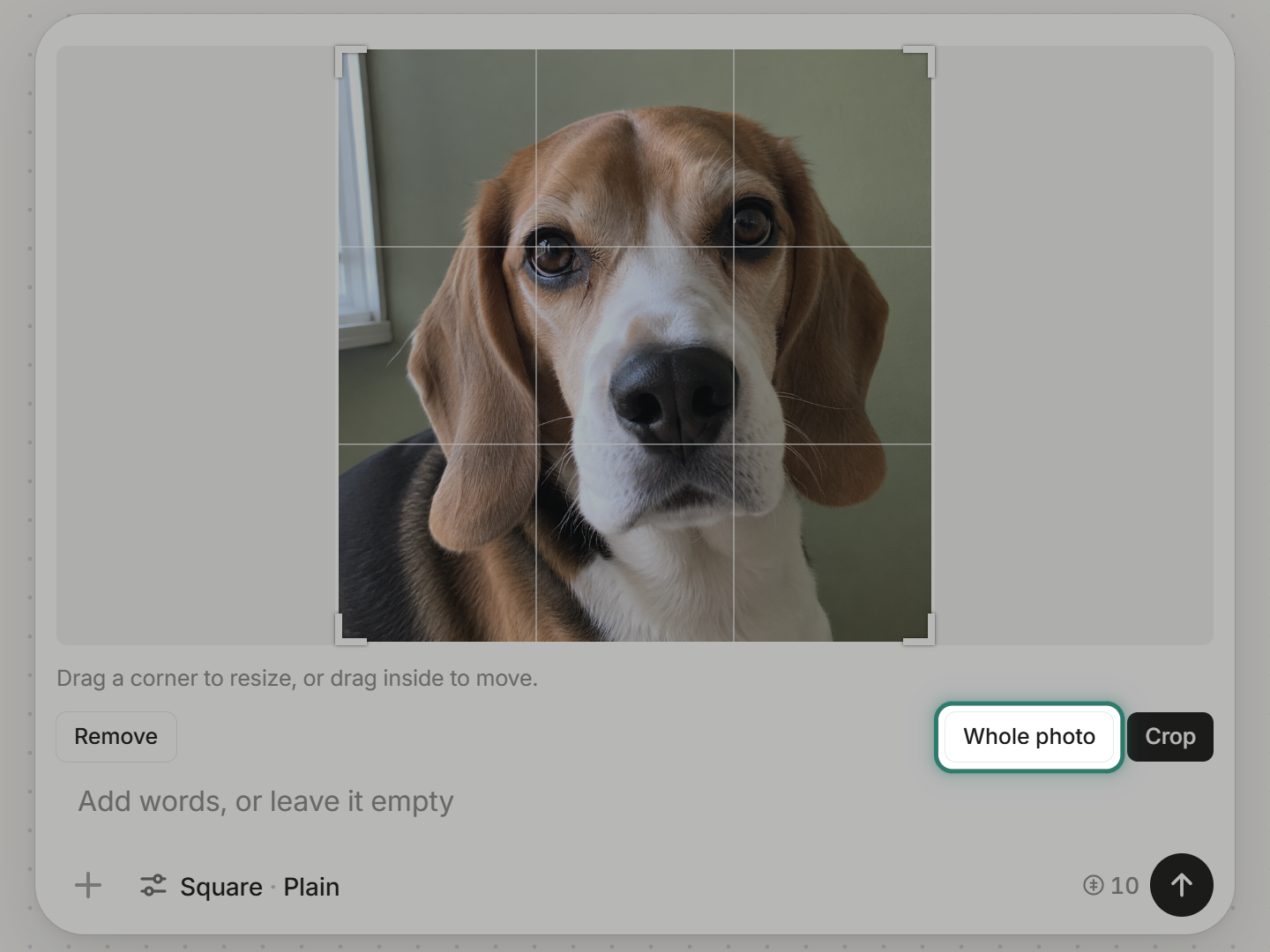
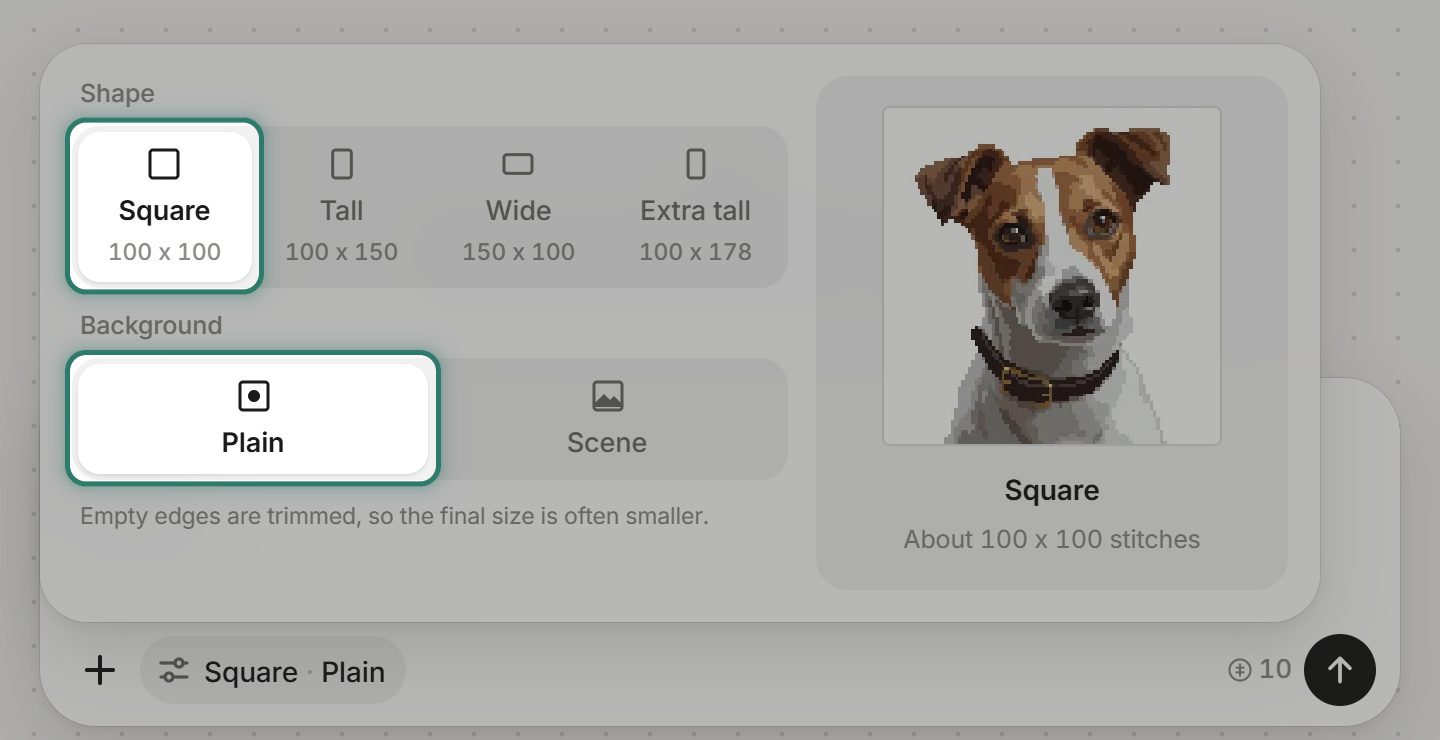
Leave the words empty. The settings button should read Square and Plain. If it doesn't, open it and pick both. The dog on the right of the settings is the app's example of the shape, not your pattern.
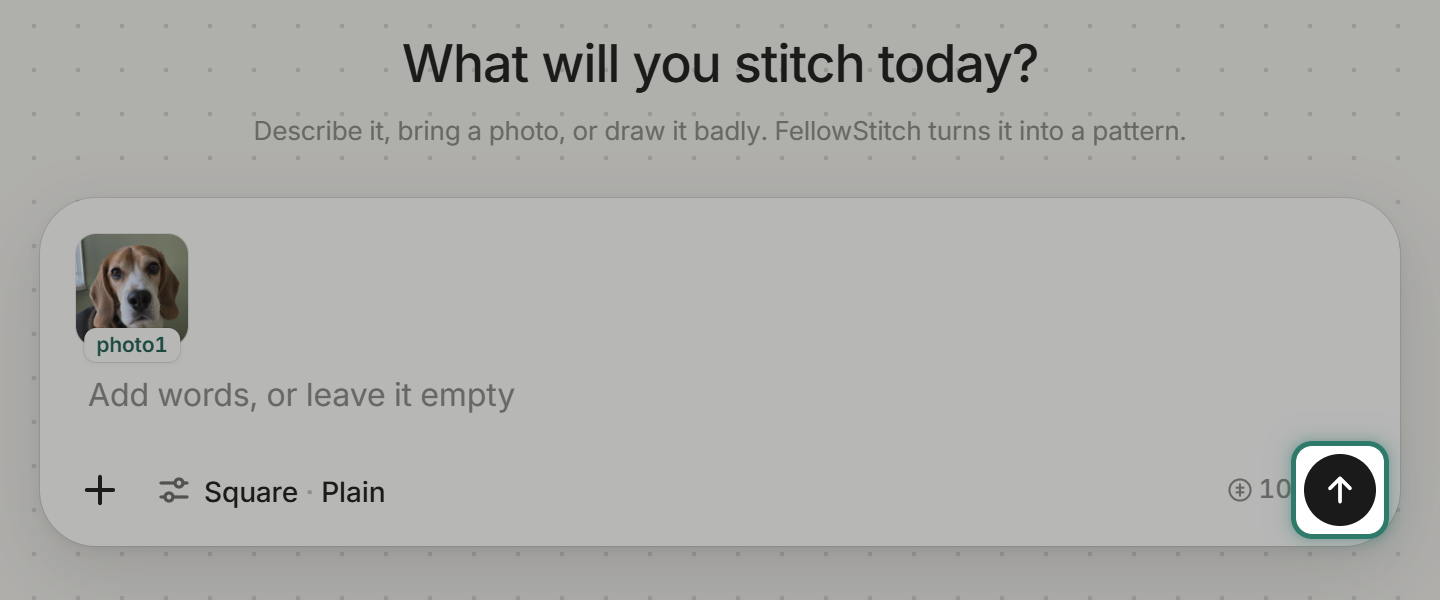
Generating needs a free account, which starts with 20 credits. Press the round Generate arrow. It costs 10 credits.
The box reads "Drawing your pattern. About a minute."
Step 2: Open the result
The result: 95 x 93 stitches, 17,2 x 16,9 cm on 14-count. Press "Yes, open as a chart".
The chart opens in the editor with 23 DMC threads on white Aida.
Step 3: Remove only the background
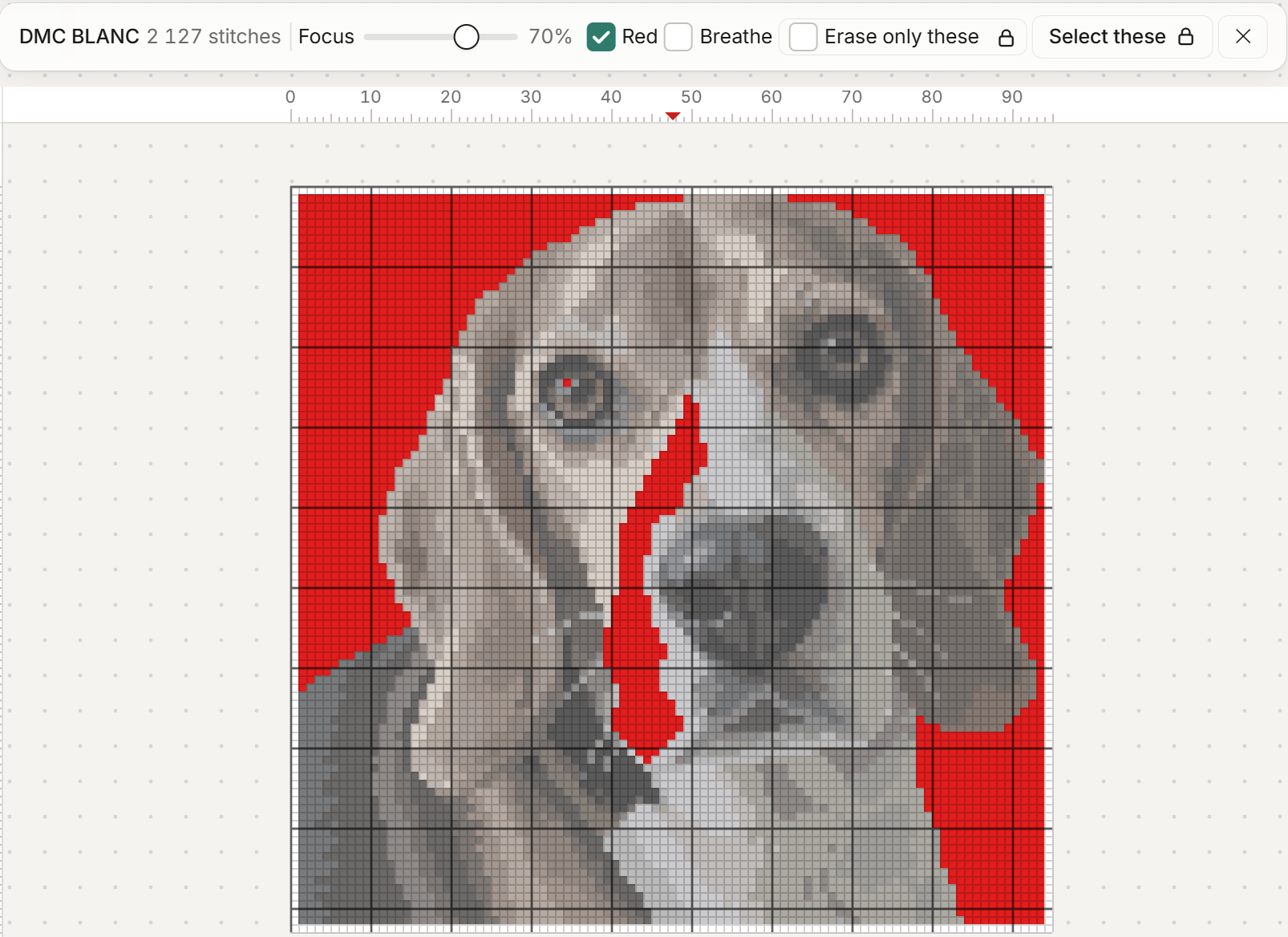
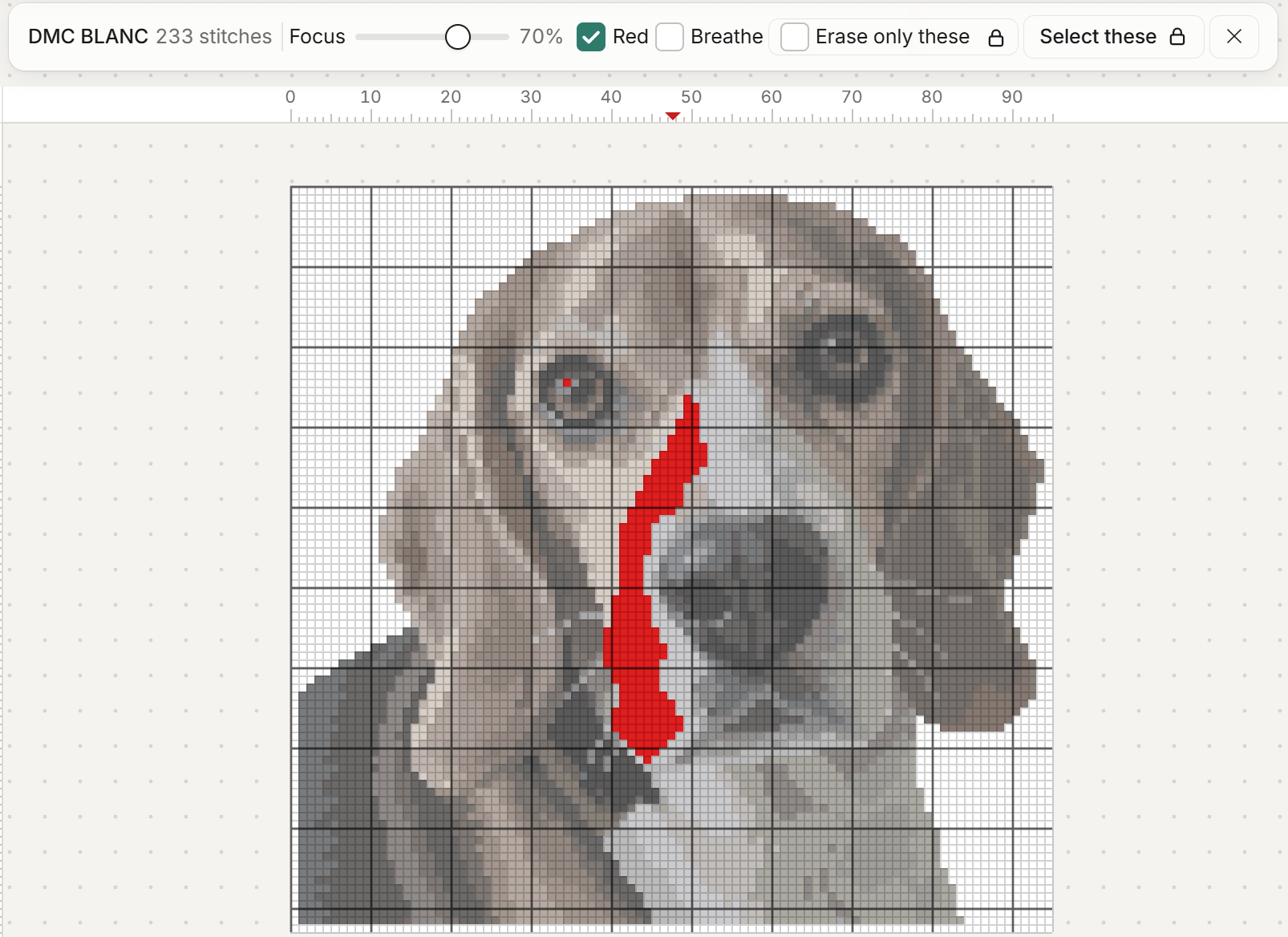
Here is the catch. The background, the dog's white blaze and the left eye's highlight are all DMC BLANC, 2 127 stitches in all. So "Remove its stitches" in BLANC's menu would clear all three. On white Aida the chart looks the same afterwards, so nothing on screen warns you.
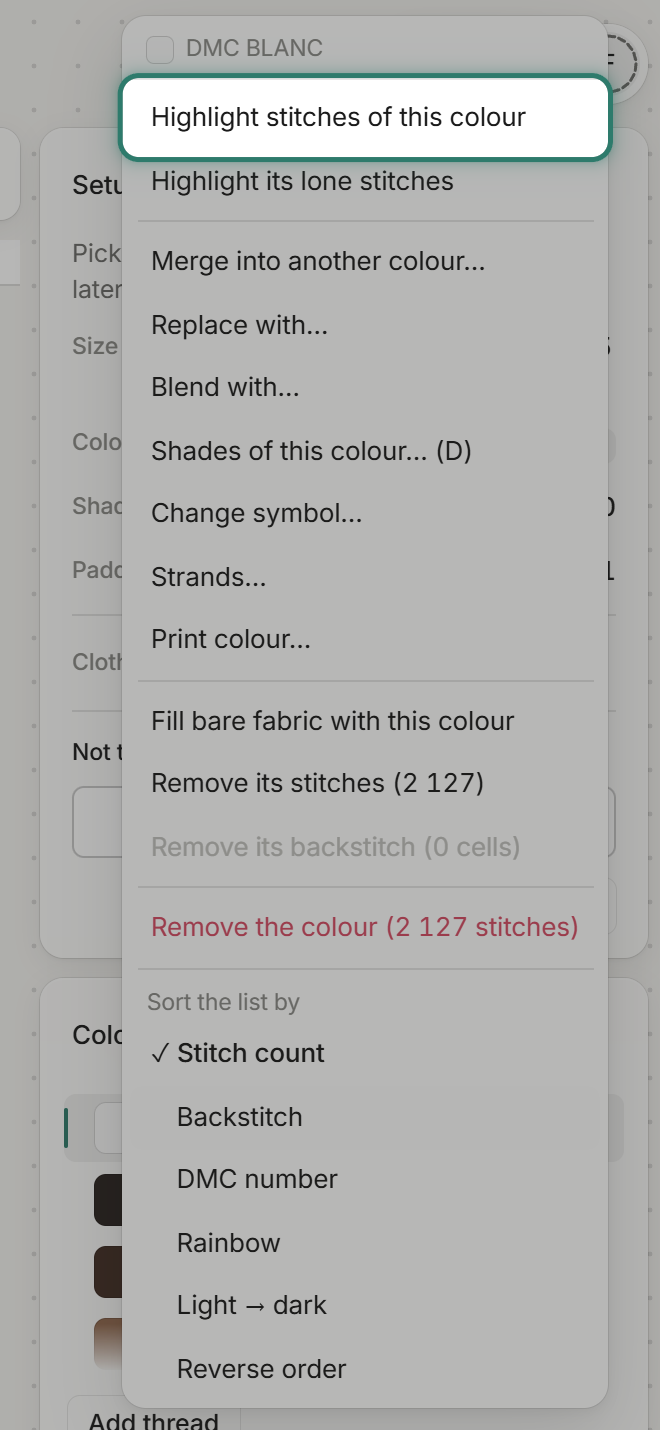
Check first. In the Colours list, point at the BLANC row and click the dots that appear at its right end. Choose "Highlight stitches of this colour".
The red covers the background, the blaze and the left eye's highlight.
Instead of removing BLANC, pick the Fill tool, the paint bucket in the tool rail (or press G), and leave Spread on Touching. The white background is three separate patches, all touching the edge of the chart: top left and down the left side, top right, and down the right side. Right-click each one. A right-click with Fill clears one connected patch to bare cloth, and the blaze touches none of them.
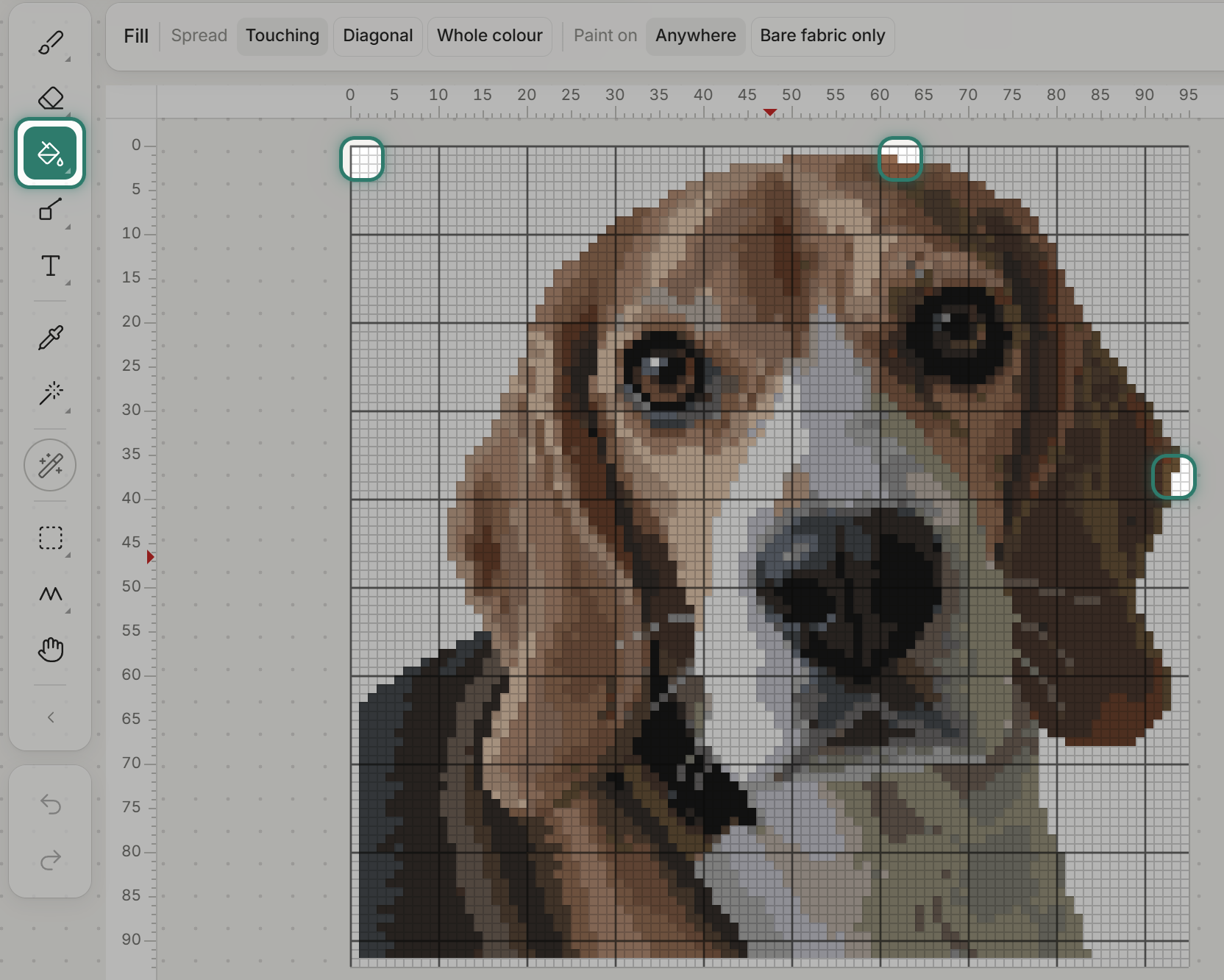
BLANC drops from 2 127 to 233. Those 233 stitches are the blaze and the left eye's highlight, exactly what should stay. Choose "Highlight stitches of this colour" again to see it.
Step 4: Keep the eye highlights (Plus)
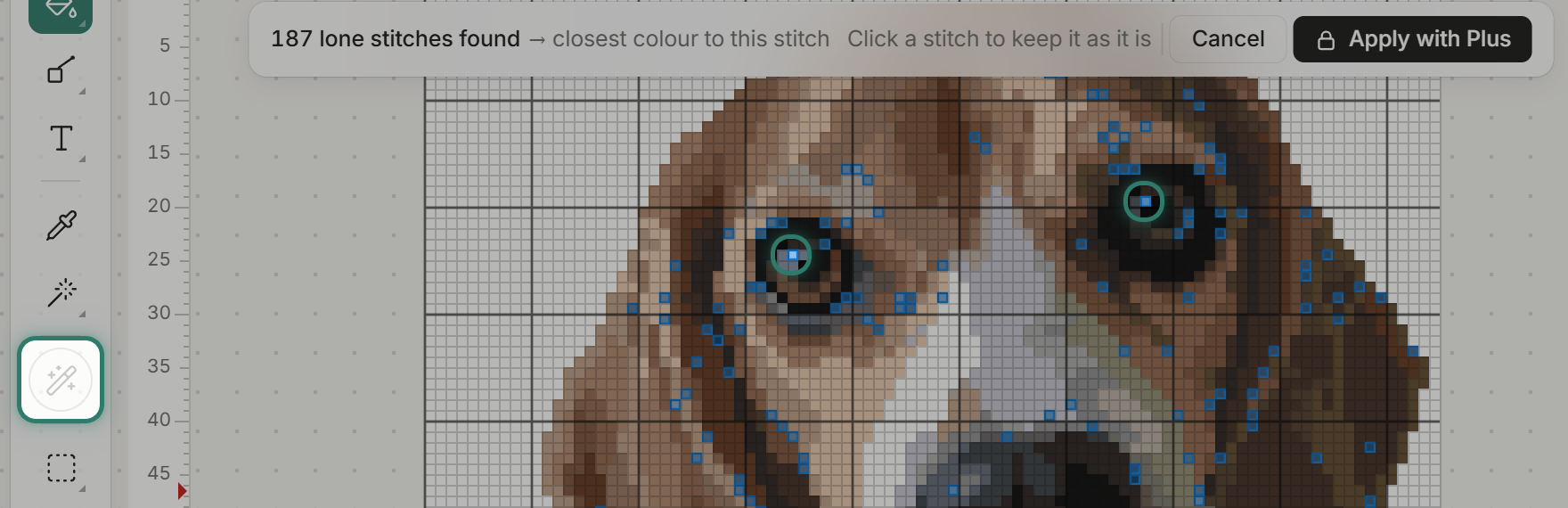
Both eye highlights are lone stitches: one BLANC in the left eye, one DMC 03 in the right. Fix all would change them, along with the other lone stitches. Applying Fix all needs Plus, so on Free the chart, eye highlights included, stays as it is and you can skip this step.
On Plus, press Fix all in the tool rail. It finds 187 lone stitches. Click each eye highlight to keep it, and the count drops to 185.
For colours, cropping and the rest of Fix all, see How to make your own cross stitch pattern.
Step 5: Save the PDF
Press Export at the top right, then Save PDF. Free PDFs carry a "FellowStitch - personal use only" line across each page. Plus prints them clean.
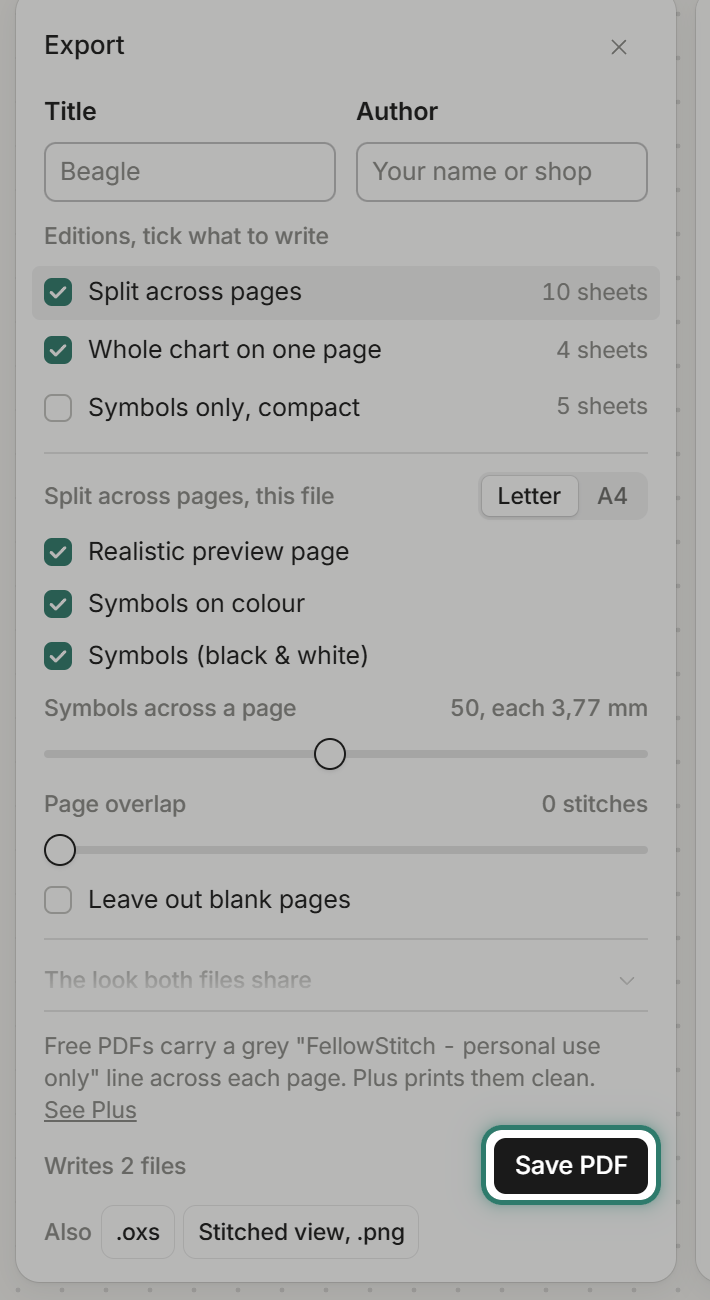
Printing needs a free account. Your first 3 patterns print at no cost, then 10 credits each.
Common questions
How do I turn a photo of my dog into a cross stitch pattern? Add the photo in FellowStitch, choose Square and Plain, and press Generate. The result is a chart with DMC threads that you can edit stitch by stitch.
Why not remove all the white stitches at once? If the dog has white fur, removing all BLANC takes the fur with the background. The Fill tool clears one connected patch at a time, so the blaze and eye highlights stay.
What about colours, cropping, and other cleanup? See How to make your own cross stitch pattern for the full walkthrough.
Can I use my own dog photo? Yes. Press "Add a photo" and pick the photo file.
Start stitching
Open the editor and try it with your own dog photo. Generating needs a free account, which starts with 20 credits.