Confetti stitches: what they are and how to clean them up
A confetti stitch is a lone stitch surrounded by other colours, with no matching neighbour on any side or corner. In a converted chart they pile up along edges and outlines, and every one means a thread change. On a chart with heavy confetti, you can spend more time managing threads than stitching.
This post shows how to find them, keep the ones that matter, and clean up the rest in FellowStitch, a free pattern maker that runs in your browser.
The chart is a robin on a mossy branch. We set it to 29 colours, the most the slider allows for this picture, so the robin's orange matches. For how the Colours slider works, see how to reduce the colours in a cross stitch pattern.
Finding the lone stitches
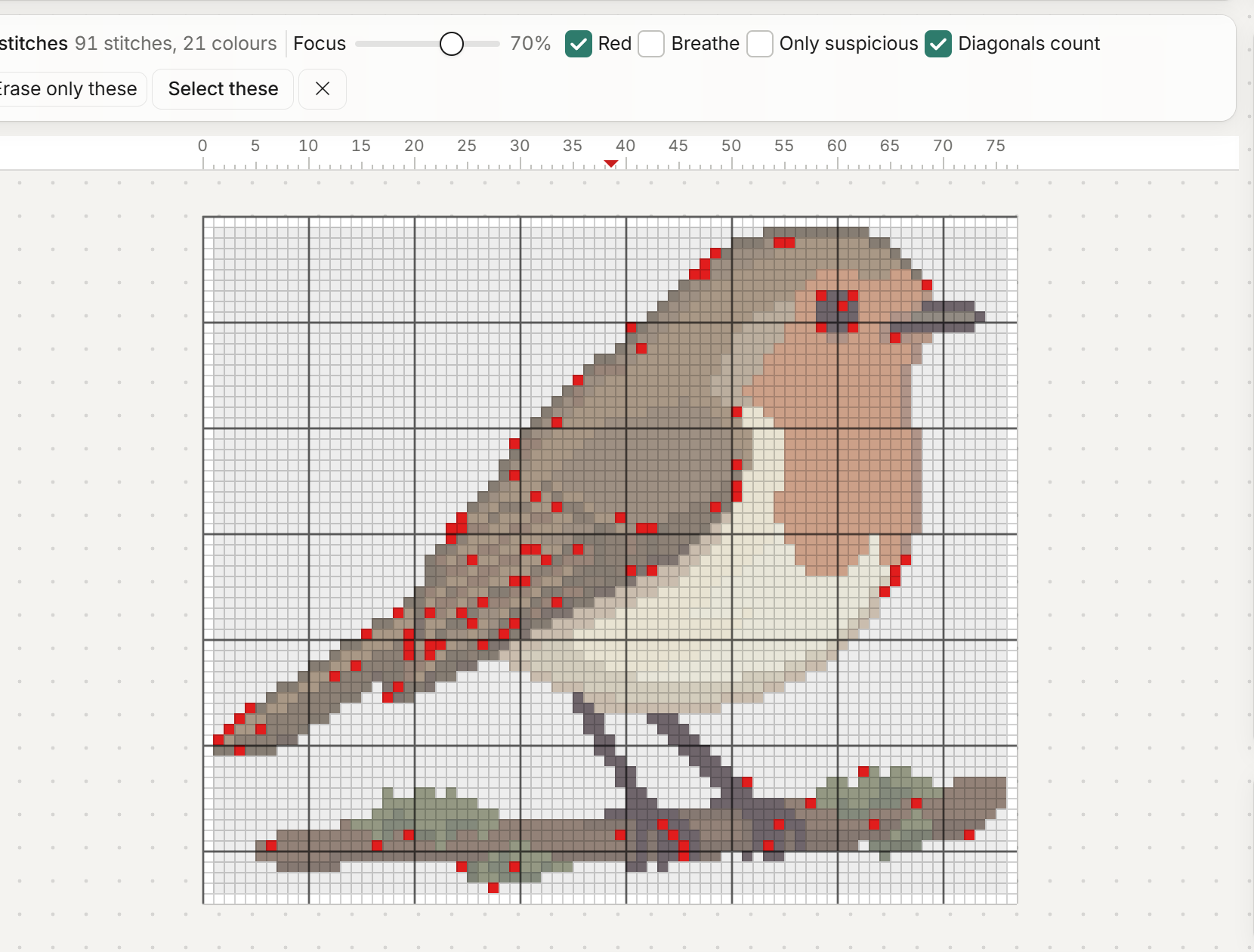
Open the Chart menu and choose Highlight lone stitches. Every lone stitch turns red.
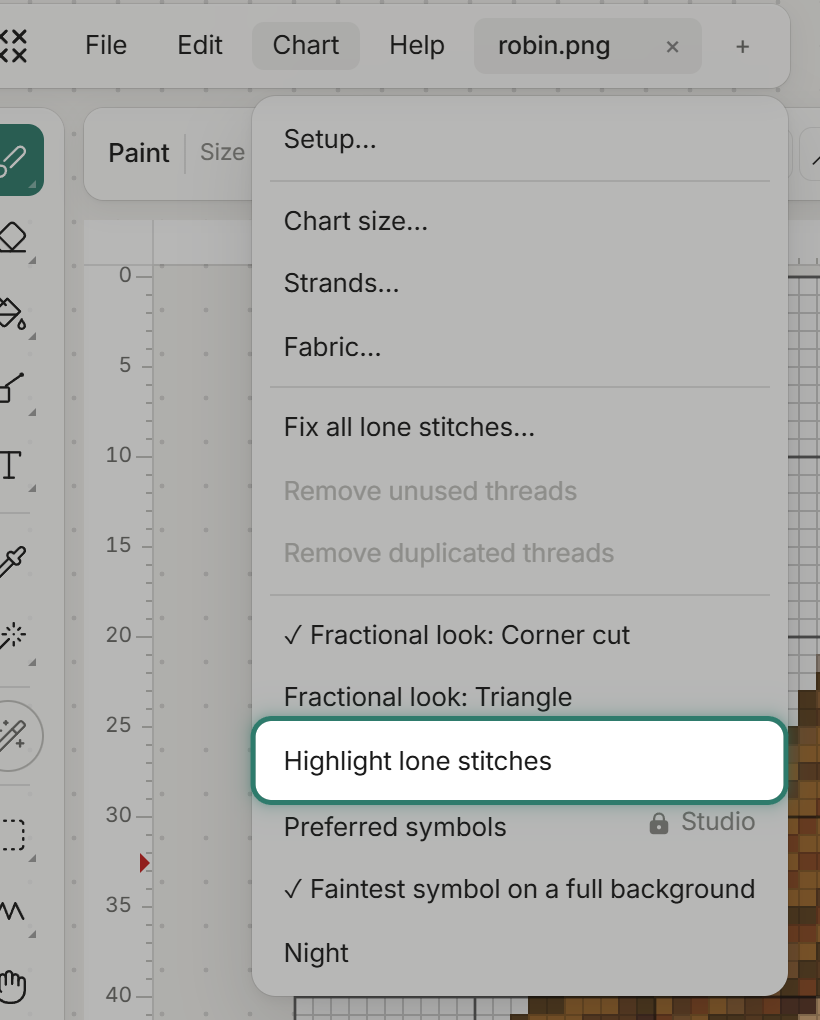
On the robin the bar reads "Lone stitches 91 stitches, 21 colours".
Not all of them are confetti
Some lone stitches are drawn on purpose.
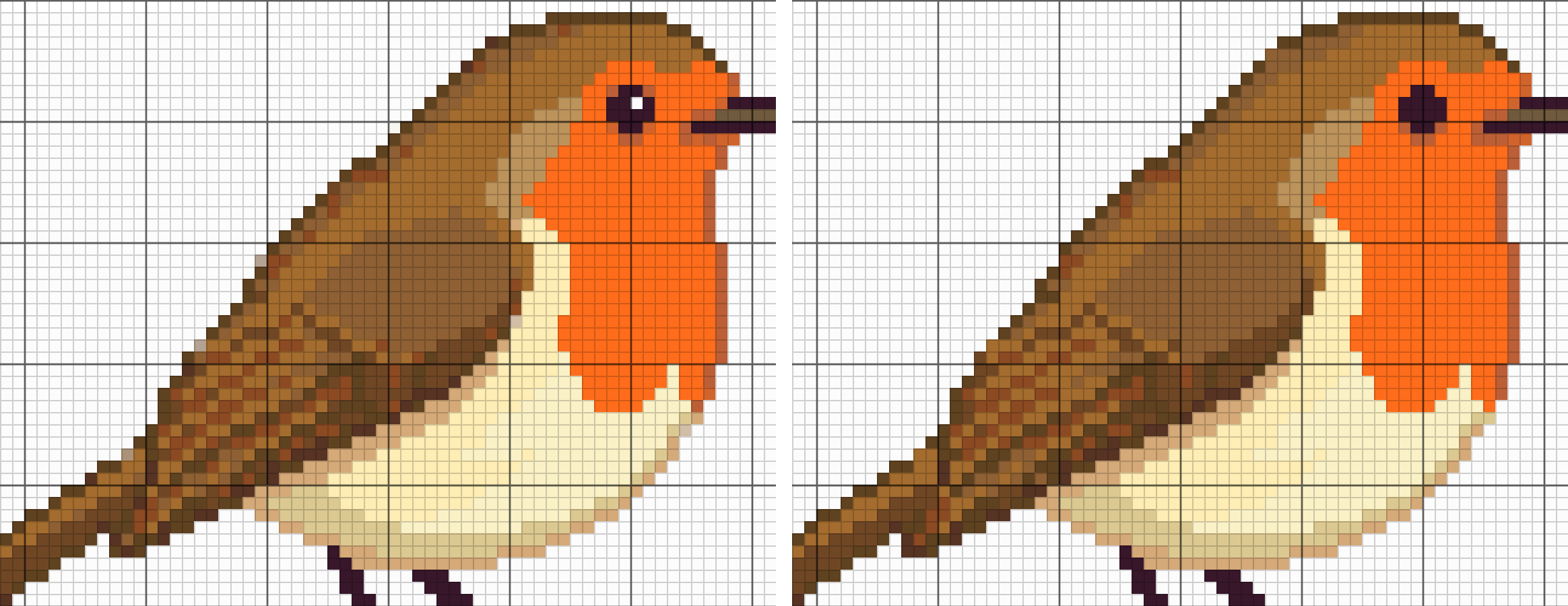
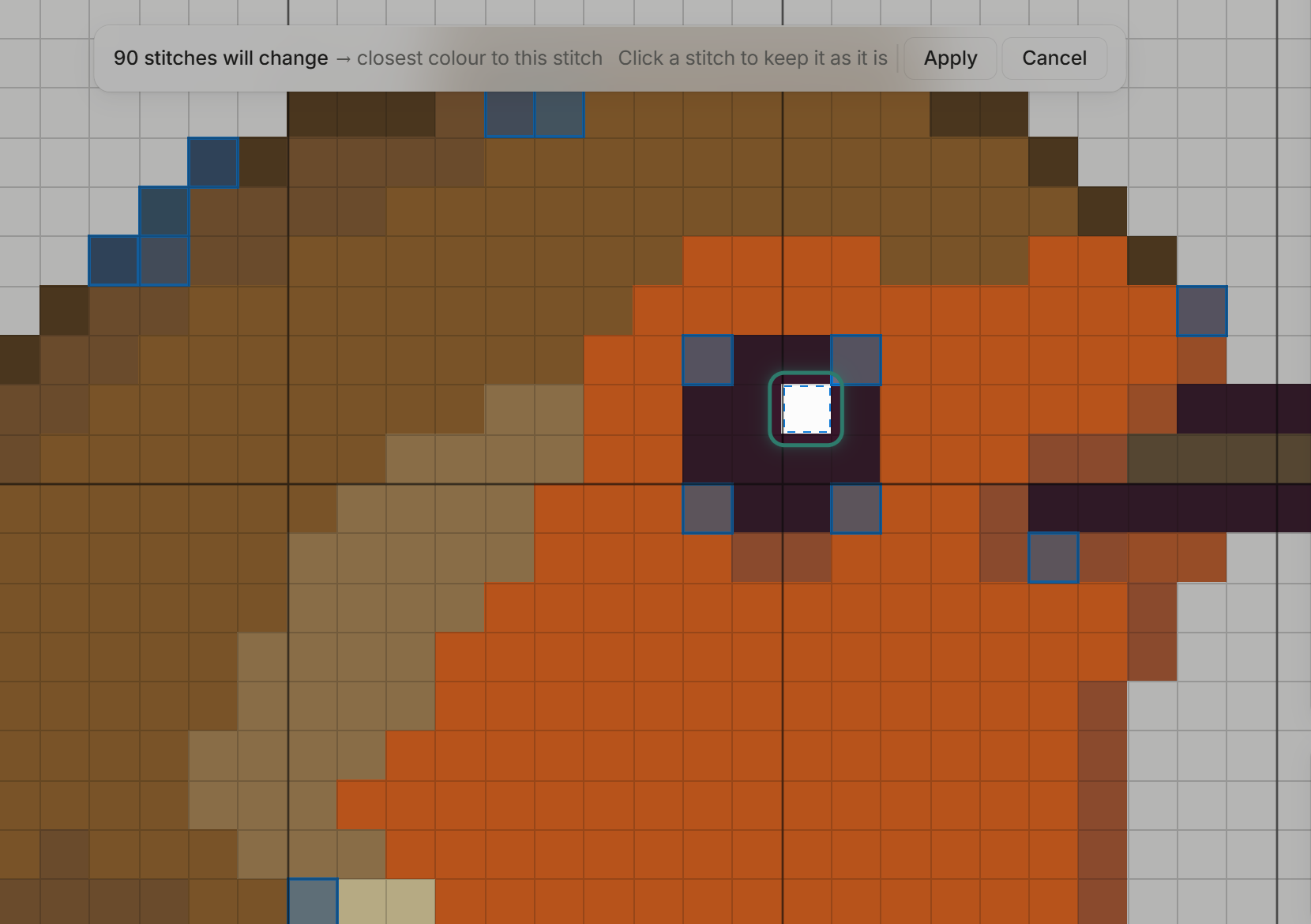
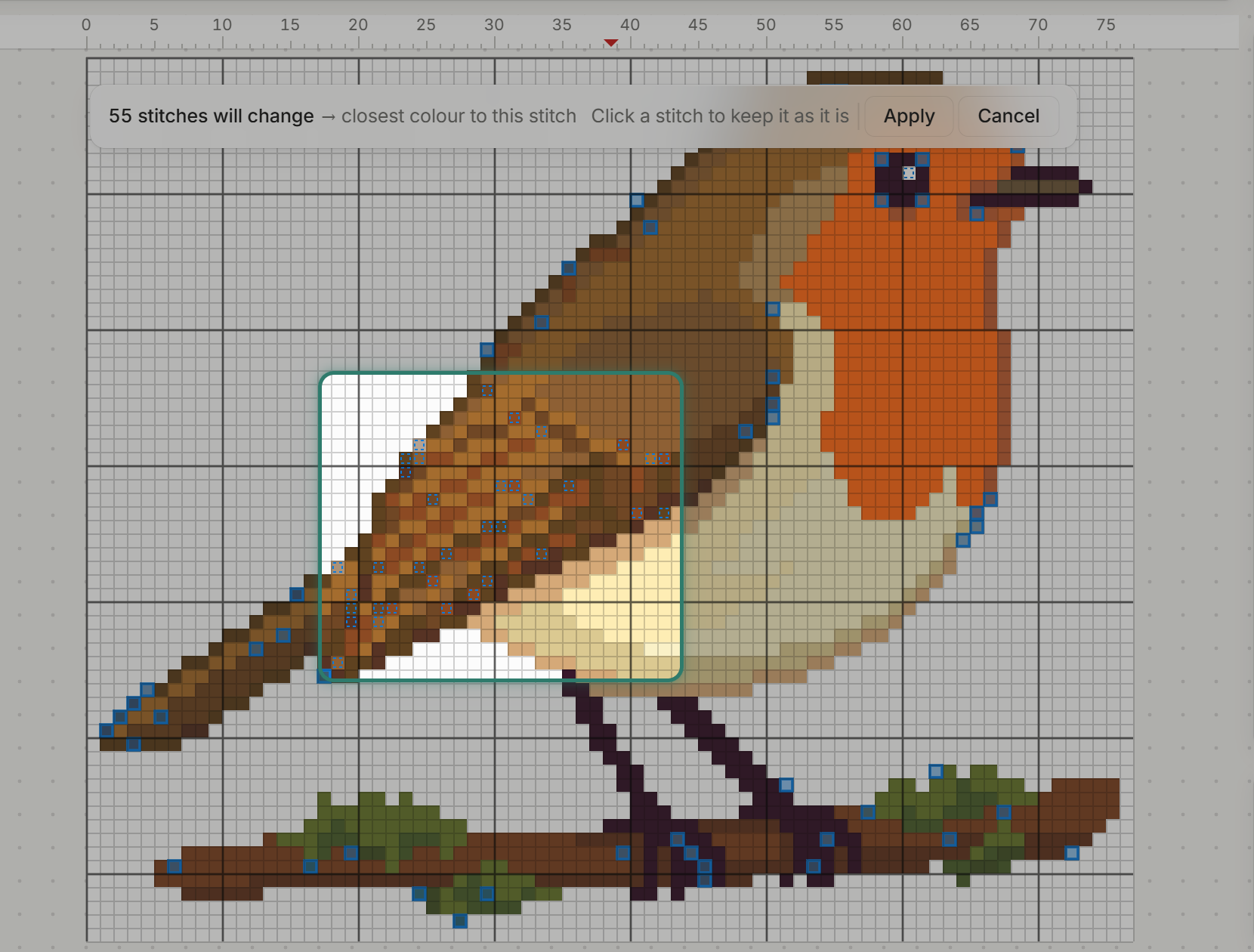
The eye has one white glint, a single stitch of BLANC inside the dark pupil. The wing has 35 lone stitches in several browns that give the feathers their texture. Together, 36 lone stitches that belong in the design.
Fix them all and you lose both. The glint becomes the dark eye colour, and the wing's feather texture is smoothed.
Fixing only the real confetti
The trick is to preview the fix and keep the stitches that belong.
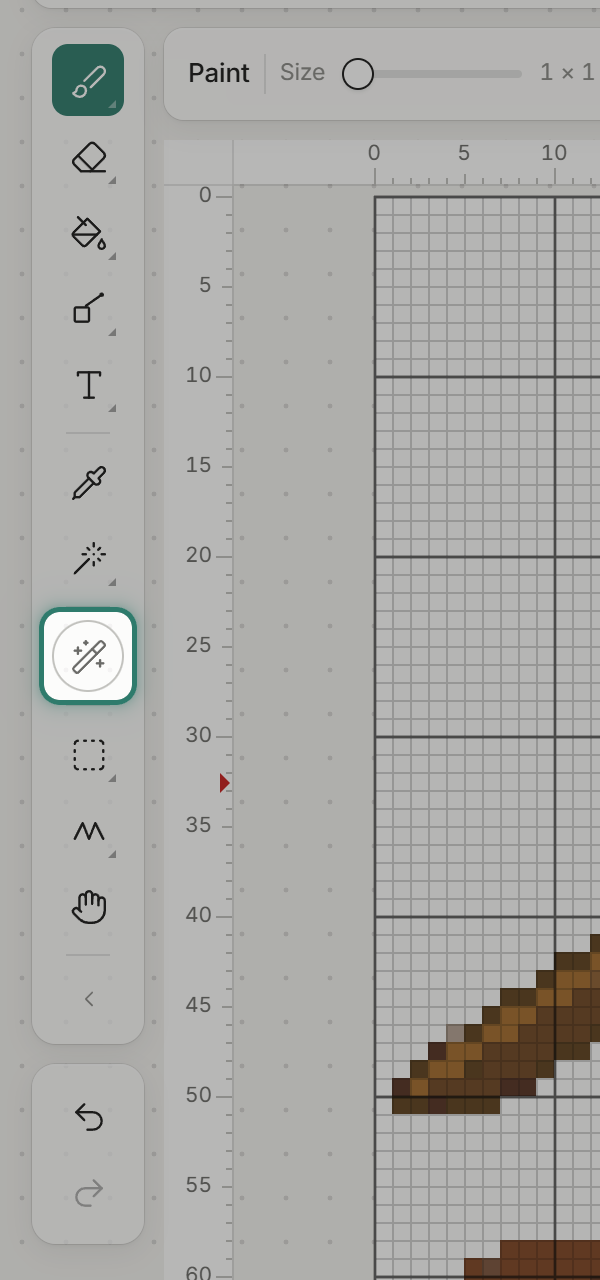
Press Fix all on the tool rail (the wand with sparkles).
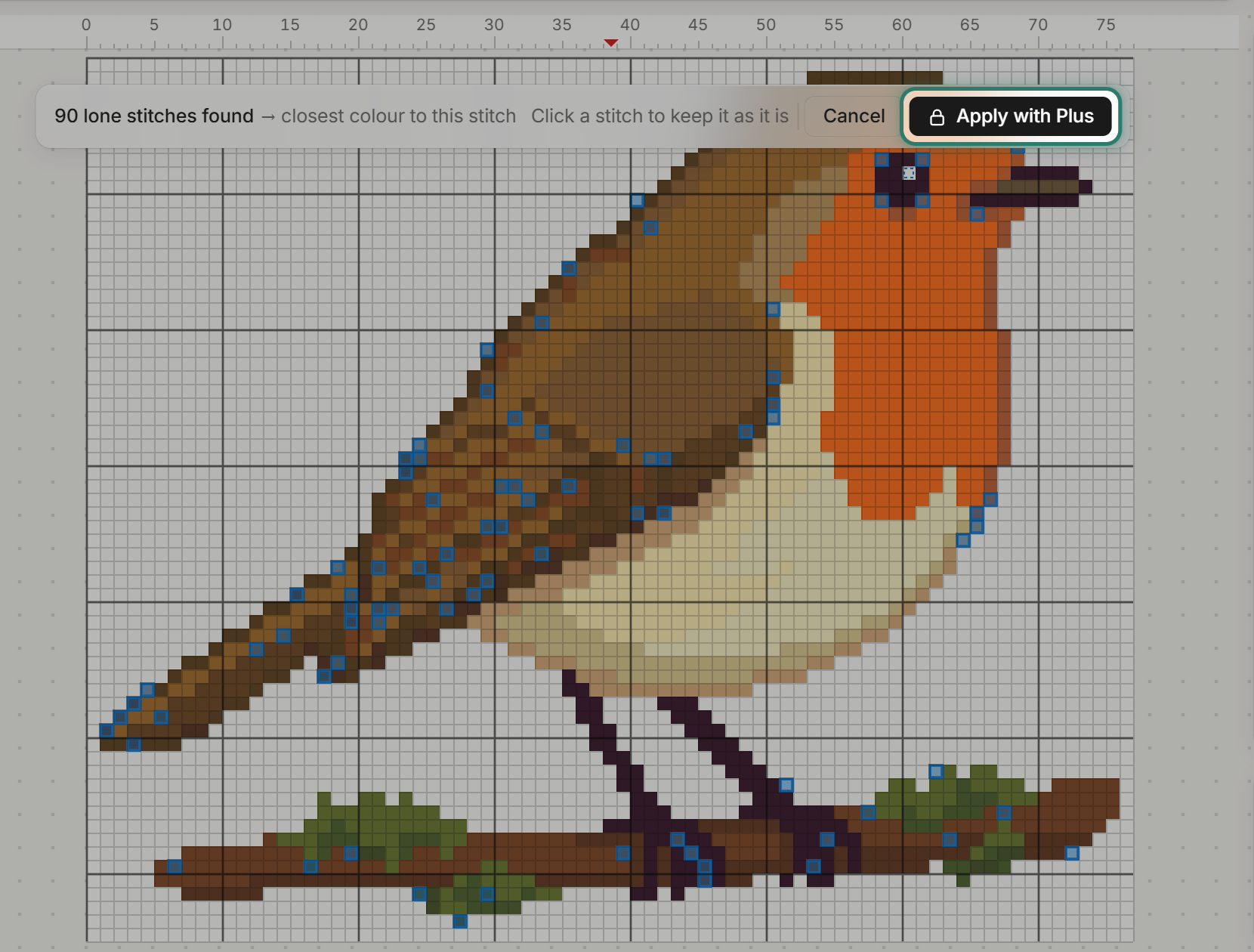
A preview opens before anything changes. Every stitch it would replace gets a blue wash and the bar reads "91 stitches will change → closest colour to this stitch".
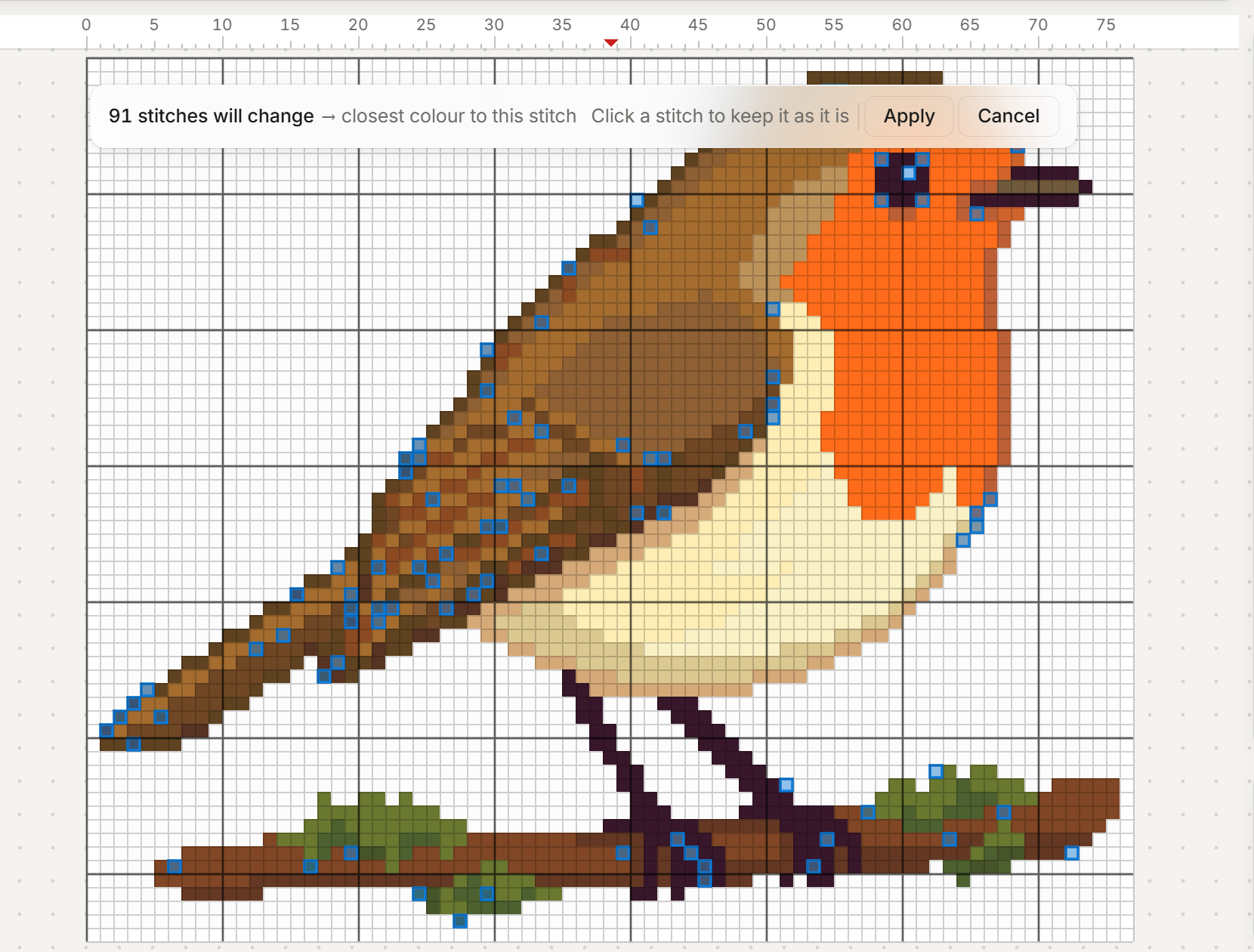
Keeping the stitches that matter
Click any stitch to keep it. It gets a dashed outline and the count drops by one.
Click the eye's glint: 91 becomes 90.
Drag across the wing: 90 becomes 55.
Press Apply (Plus).

Exactly 55 stitches changed. The glint and the wing stayed, and the outline is cleaner.
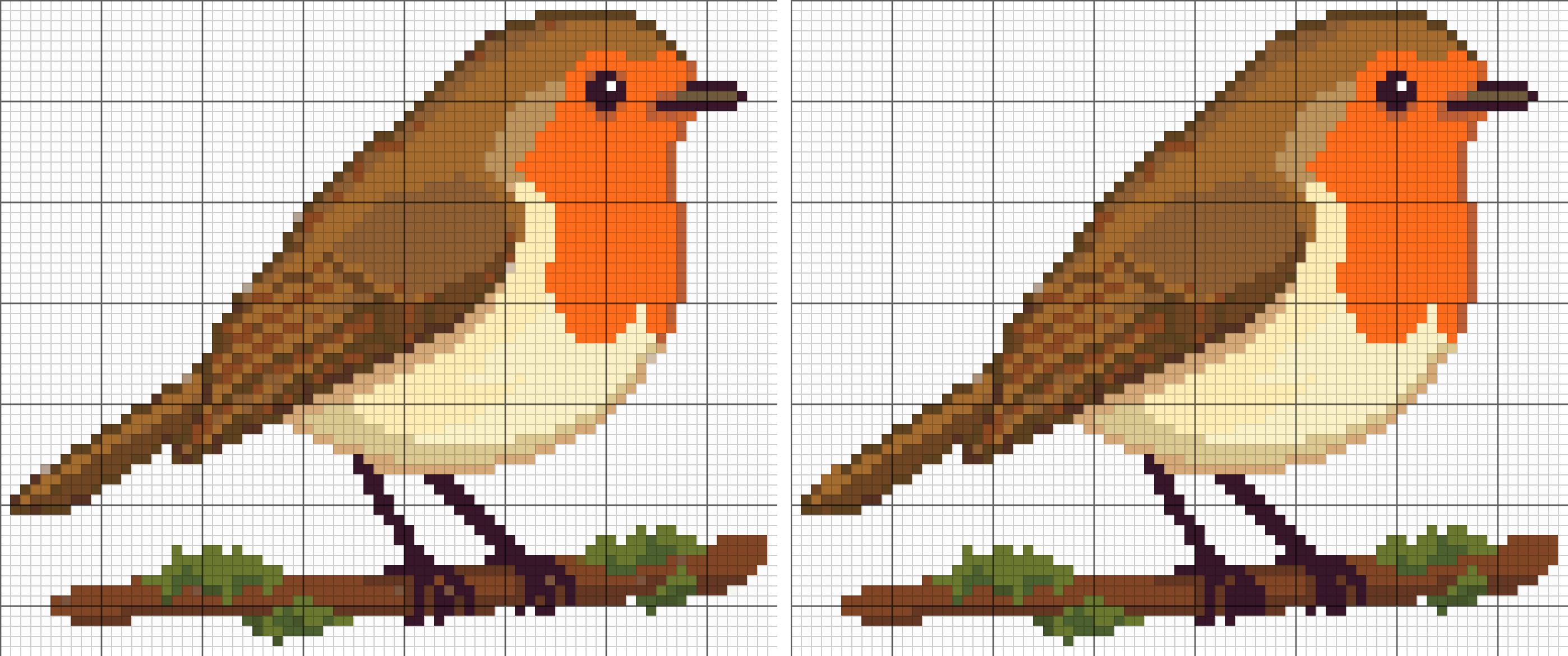
Apply is one undo step. Press Esc or Cancel to close the preview without changing anything.
The two replace modes
Fix all uses the Fix brush's settings. Press the Fix brush (the wand) on the tool rail and its strip shows Replace with.

"Closest colour to this stitch" is the default. The stitch becomes the touching colour nearest its own, so it joins the shape beside it.
"Most common colour around it" turns the stitch into whichever colour fills most of the squares around it.
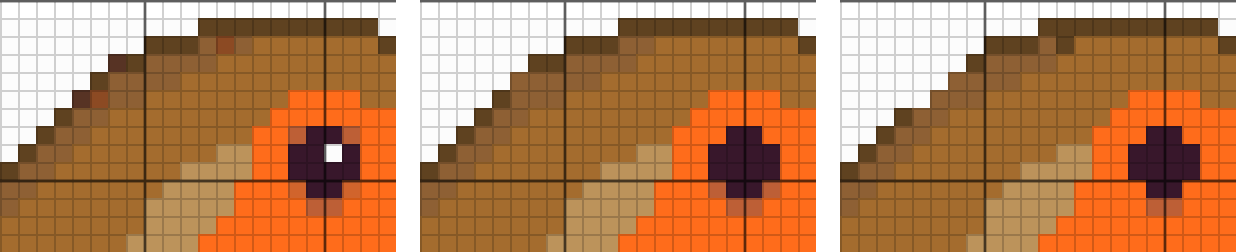
On the robin both modes change the same 91 stitches. They pick a different colour for 44 of them. Most common turns some dark outline stitches into white background, where Closest keeps them brown.
If the pattern is not yours
If you bought a pattern and cannot edit it, a few things help.
Park your threads: bring the needle up where the next stitch of that colour will be, instead of ending it. Work one colour across a section before moving to the next. Keep the back tidy by running under nearby stitches rather than knotting.
What Free users get
Highlight lone stitches and the full preview work on Free. Clicking to keep a stitch works too.
The button reads "Apply with Plus". Pressing it opens the plans.
Printing needs a free account. Your first 3 patterns print at no cost, then 10 credits each. See pricing for what Plus adds.
Common questions
Should I remove all the lone stitches? No. Some are deliberate, like the robin's eye glint and wing texture. Preview first and keep the ones that matter.
Does cleaning up confetti change how the pattern looks? On the robin, 55 stitches changed and the outline got cleaner. The eye and wing are the same.
Is confetti cleanup free? Highlighting and previewing are free. Applying the fix needs Plus.
Start tidying
Open the editor and try Highlight lone stitches on your own chart.
How to make your own cross stitch pattern